POP Guide FAQ
How can I login?
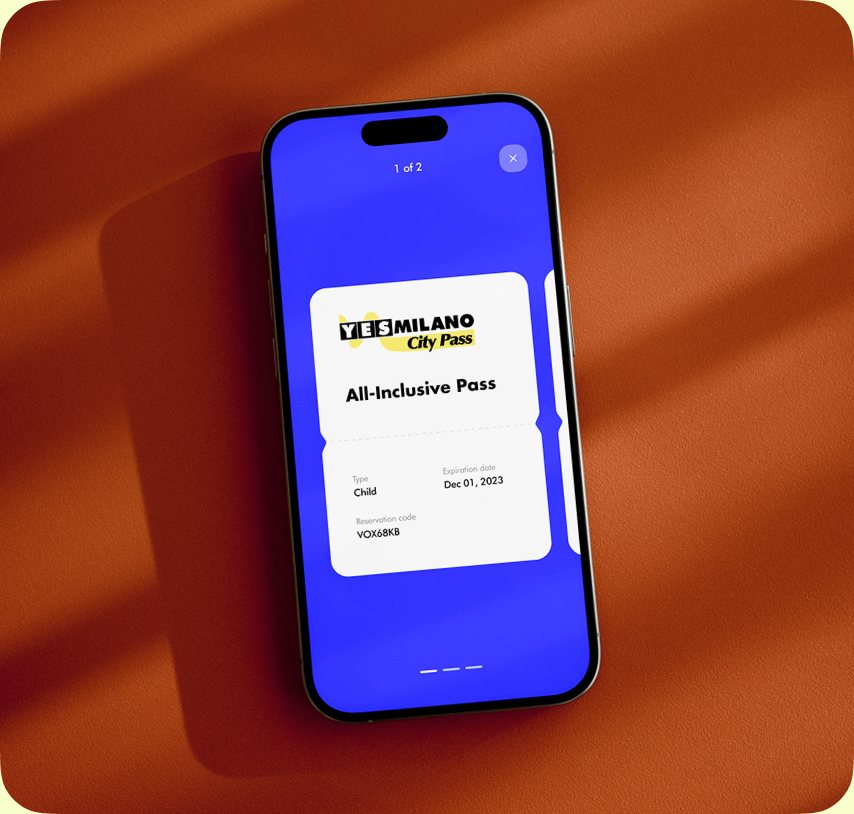
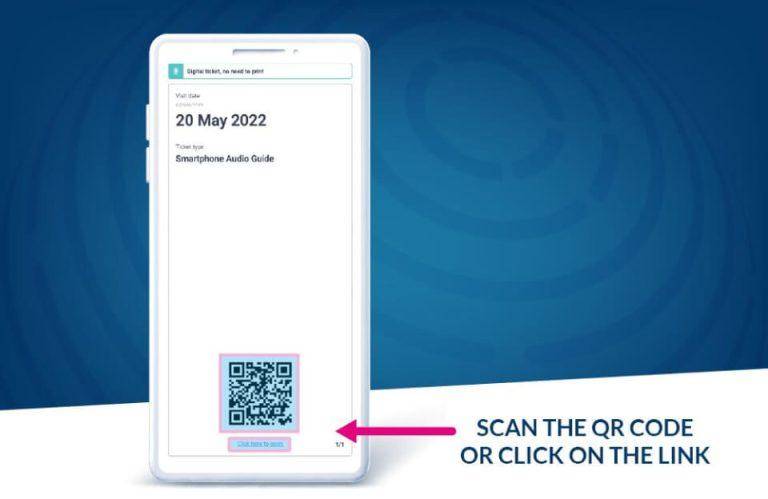
After you have purchased your login credentials through a POPGuide partner, login into the app by scanning the QR code on their voucher or by clicking on the intelligent link. This will allow you to download the app from your store and install your purchased content.
How can I download my contents?
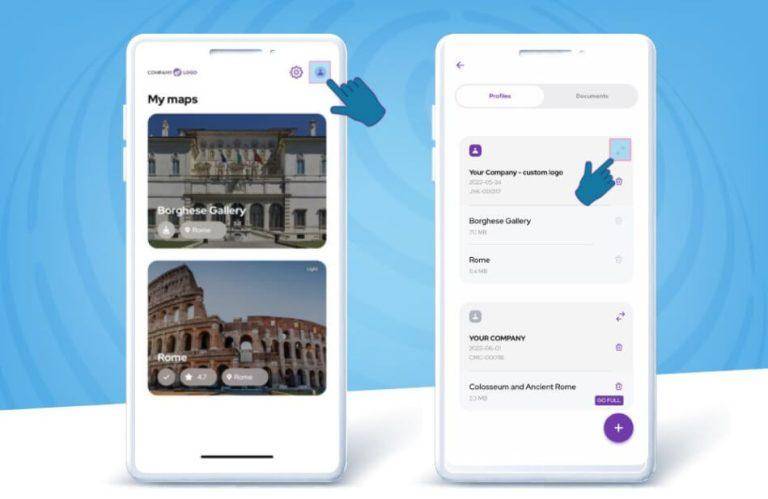
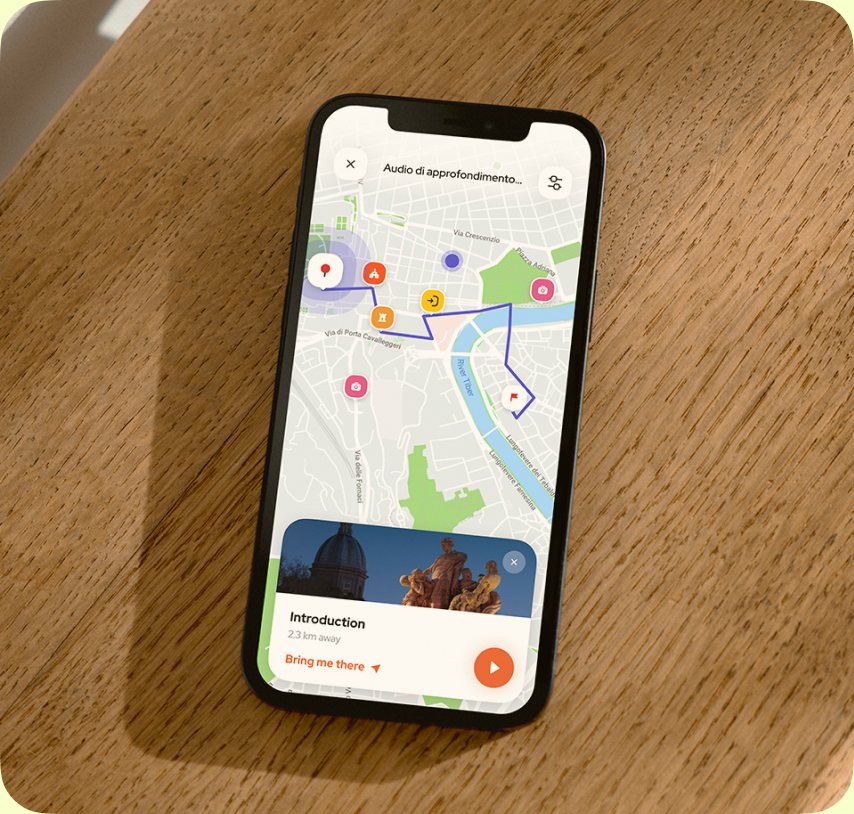
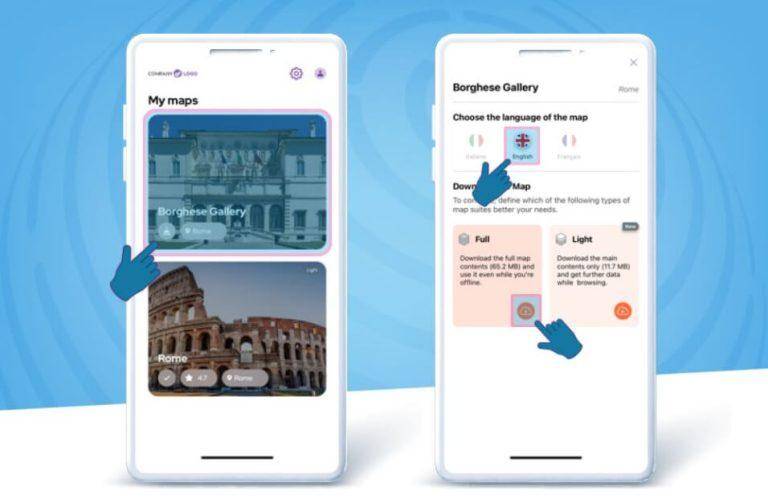
Once you login into the app, you can download your purchased content. Click on the map box, then select one of the available languages. You can choose to download the content in full or light mode. Full mode will allow you to use the app completely offline, while light mode will require an internet connection throughout your visit.
How do I change the language of my contents?
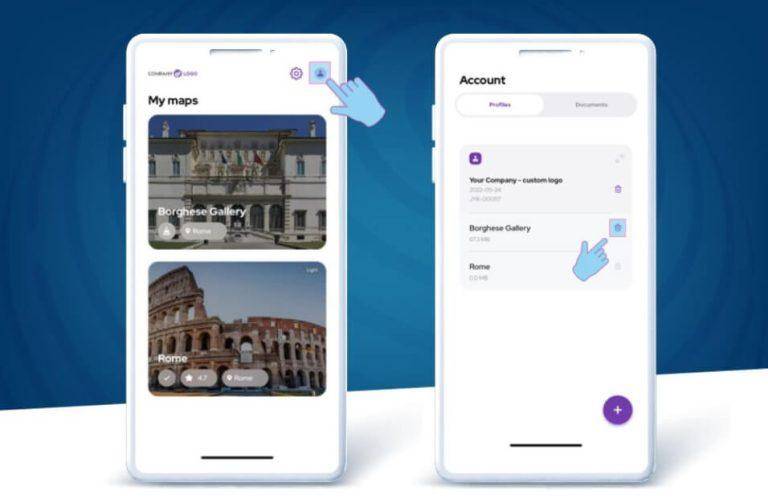
If you have selected the wrong language by mistake, you can change it in your settings. Go back to the ‘My Maps’ page, then click on your profile on the top right menù. Click on the delete icon next to the map you wish to download again. Now go back to ‘My Maps’ and download the map in your chosen language.
I deleted the app by mistake
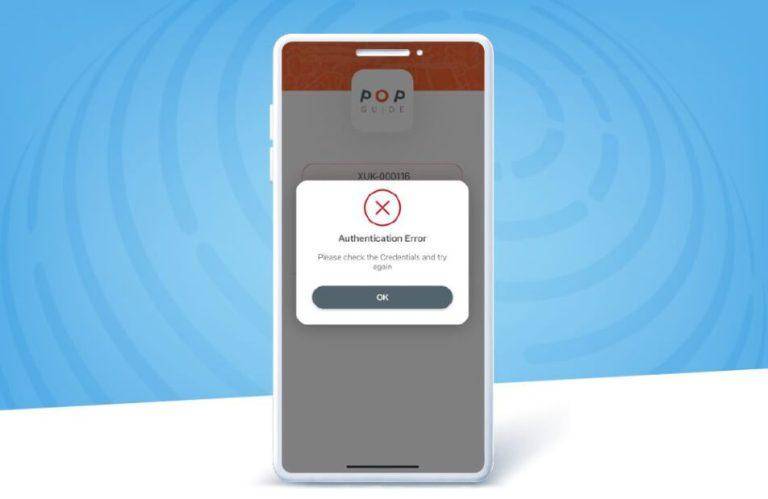
Please note that your login credentials can be used only once on your chosen device. If you have deleted the app by mistake, simply contact the customer care of the partner who sold you the audio experience, and they will generate a new login for you.
How do I see self-guided tours
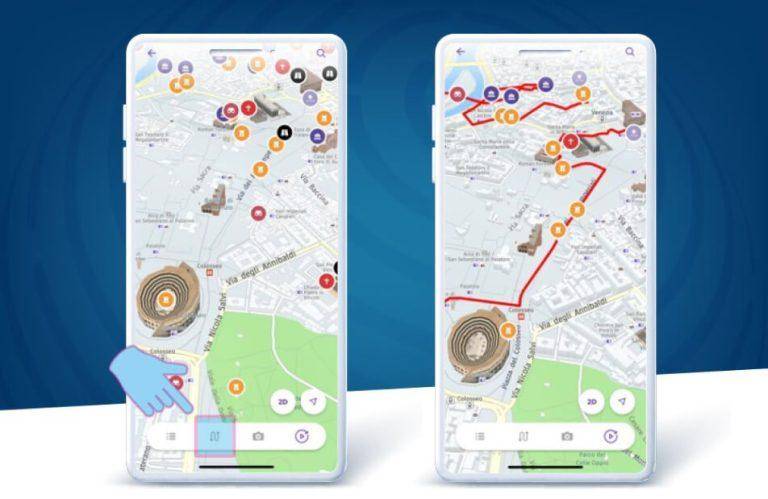
If you have purchased a city experience, we have included some suggested self-guided tours to help you discover the best the city has to offer. You can find them by clicking on the second (routes) icon of the lower menù. There you will see all the available suggested tours. Just select the one you like the most.
I have purchased two or more audio experiences. Where do I see all of my available audio experiences?
If you have purchased two or more audio experiences, you can easily see these on the ‘Account’ page. To find this, go back to the ‘My Maps’ page and click on your profile in the top right corner. Click on the ‘swap’ icon next to the audio-experience you wish to use. Now, go back to ‘My Maps’ and enjoy your visit!